iPhone guide
How to Use ChatGPT on an iPhone: A Simple Step-by-Step Guide
You can use ChatGPT on an iPhone by installing the official app from OpenAI, opening it, and typing in the message box at the bottom of the screen. You do not need to understand how the technology works.
If you can open an app and send a text message, you already know most of what you need to get started.
This page is the iPhone walkthrough. If you want a broader introduction first, start with the complete beginner’s guide to ChatGPT.
Before you begin
ChatGPT is made by OpenAI. The official iPhone app is free to download and is enough for everything in this guide.
Other apps use similar names or icons. OpenAI’s own help page says to search for “openai chatgpt” and confirm the publisher is OpenAI before you install.
The current U.S. App Store listing is published by OpenAI OpCo, LLC. That is still OpenAI. If the developer name is something else, leave that listing alone.
You may see offers to upgrade after you open the app. You do not need a paid plan to send messages, ask follow-ups, or try the example later in this guide.
Step 1: Open the App Store
On your iPhone, find the App Store. The icon is a blue square with a white “A” made of three sticks.
- Unlock your iPhone.
- Tap the App Store icon.
- If you do not see it on the Home Screen, swipe down and type App Store.
Step 2: Search for ChatGPT
- Tap the Search tab at the bottom of the App Store.
- Type openai chatgpt.
- Open the listing named ChatGPT.
- Check the developer name. You want OpenAI, currently shown as OpenAI OpCo, LLC.
You can also open the official listing directly:
Official ChatGPT listing in the App Store
If the listing says your iPhone software is too old to install the app, you can still use ChatGPT in Safari at chatgpt.com. This guide stays with the official app.
Step 3: Install and open ChatGPT
- Tap Get. If the app is already on your phone, tap Open.
- If Apple asks you to confirm with Face ID, Touch ID, or your Apple ID password, do that. That is Apple confirming the download, not ChatGPT charging you.
- Wait until the button changes to Open, then tap it.
- Sign in if you already have a ChatGPT account, or choose Sign up and follow the on-screen steps.
If a screen asks you to pay before you have sent a message, close that offer and look for a way to continue with the free version.
After it installs, you may not see ChatGPT on the first Home Screen. Swipe left through your pages, or swipe down and type ChatGPT. The same app also works on iPad, with a larger layout.
Step 4: Find the message box
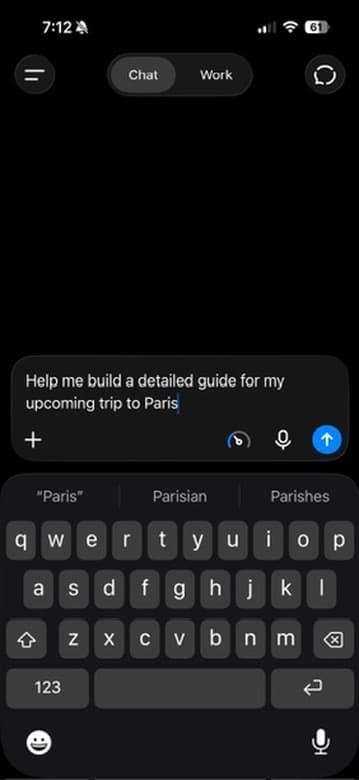
After you are signed in, look near the bottom of the screen. You should see a rounded box. That is where you type, just as you would in a text message.
Next to the box you may also see a plus sign, a voice control, and an up arrow. The up arrow sends the message.
The message box in the ChatGPT iPhone app
Step 5: Send your first message
Tap the empty box. Type this, or copy it:
Copy this and send it. You do not need to change anything.
Hi. I’m new to ChatGPT. Give me three simple things you can help me with today.
Then tap the arrow or Send control. Wait a moment. The reply appears above the box, in the same conversation.
You
Hi. I’m new to ChatGPT. Give me three simple things you can help me with today.
ChatGPT
I can help you turn a messy grocery list into a simple list, draft a short thank-you text, or explain a confusing iPhone message in plain English.
Your reply will not match this word for word. That is fine. You are looking for a clear, ordinary answer you can keep talking about.
To keep a reply, tap and hold the text and choose Copy. You can paste it into Notes, a text message, or an email. Read it before you send anything in your own name.
Step 6: Ask a follow-up question
Stay in the same chat. You do not need a perfect first question, and you do not need to start over. Type again in the same box.
Stay in the same chat and send this.
Give me another example.
Use this if the reply feels too long or too technical.
Explain that more simply.
That is the main skill. ChatGPT is a conversation. If the first answer is not quite right, say so and keep going.
Step 7: Try one useful task
You can start a new chat for this, or continue in the same one. Send:
Copy this and send it.
I need three simple dinner ideas for this week. Ask me two questions before suggesting anything.
Answer the two questions in ordinary English. Then try one of these:
Use this if the meals sound like too much work.
Make them easier.
Use this after you like the meal ideas.
Give me a grocery list.
Change this to whatever you want swapped.
Replace the chicken meal.
If you leave with three dinners and a list you can use at the store, that is a real first win.
Using voice instead of typing
The iPhone app can also let you talk instead of type. Look near the message box for a voice or sound-wave control. If you see it, tap it and speak as you would to a person.
The exact icon can change as the app updates, and some voice options depend on your plan. If you do not see a voice control, or if you prefer typing, the message box is enough.
Using photos and screenshots
You can often show ChatGPT something instead of describing it. Look near the message box for a plus sign, camera, or photo option. You can attach a photo or an iPhone screenshot.
This is useful when a settings screen or pop-up is hard to explain. First take a screenshot:
- On an iPhone with Face ID, press the side button and the volume-up button at the same time, then let go.
- On an iPhone with a Home button, press the Home button and the side or top button at the same time, then let go.
A small preview appears in the corner. You can leave it, or tap it if you need to crop out private details. Then attach it in ChatGPT and send:
Attach the screenshot first, then send this.
I’m not very technical. Explain what this means in plain English. Give me only the first step, and wait before giving me the next one.
Do not upload pictures that show passwords, account numbers, security codes, Social Security numbers, or other highly sensitive details. Cover those or leave them out.
For the full steps on a phone or a computer, including a PDF and what to type after you attach it, see how to upload a photo or document to ChatGPT.
How to start a new conversation
When you want a fresh thread, start a new chat:
- Tap the three bars at the top of the screen. That opens the menu of your chats.
- Tap the blue Chat button. That starts a new conversation.
A new conversation gives you a clean thread for a new topic. It does not always wipe everything. Depending on your account settings, ChatGPT may still use saved memory or details you have asked it to remember.
Use a new chat when you change subjects. Stay in the same chat when you are following up.
Earlier conversations are usually in a menu, often at the top left. You can open an old chat if you want to continue it later. If you cannot find a past chat, start a new one and ask again. You have not lost the skill.
If something does not look right
- The App Store shows several AI apps. Check the developer name before you tap Get.
- You do not need to start a new chat every time you have a follow-up. Stay in the same conversation.
- If the first answer is too long, say “Explain that more simply.” That is a normal next step, not a mistake.
- If the app asks you to pay before you have tried it, close that screen and keep going with the free version.
Is ChatGPT free on iPhone?
Yes. The official app is free to download, and the free version is enough to get started.
The App Store listing includes optional in-app purchases. You can ignore those for now. Start with the free version and see whether it helps with everyday tasks.
5 useful follow-up phrases to save
Keep these in a note. They work in almost any ChatGPT conversation.
- “Explain that more simply.”
- “Give me an example.”
- “Ask me questions before answering.”
- “Give me only one step at a time.”
- “What should I verify before acting on this?”
What not to share
Keep these out of ChatGPT, including photos and screenshots:
- passwords
- Social Security numbers
- bank or credit card numbers
- verification or security codes
For the longer list, including Medicare numbers and how to cover details on a screenshot first, see what not to share with ChatGPT.
For health, money, legal, or safety questions, use ChatGPT to understand the wording and prepare questions. Check the original source or a qualified person before you act.
Your 5-minute challenge
- Open the ChatGPT app on your iPhone.
- Send one message.
- Ask one follow-up.
- Ask it to explain the answer more simply.
- Use it for one real task, such as the dinner ideas above.
If you did those five things, you already know the basic skill behind using ChatGPT.
What to learn next
You now know how to find the official iPhone app, open it, send a message, keep the conversation going, and start a new chat when you change topics. You also know that voice, photos, and screenshots can help, and what to keep private.
For more everyday examples beyond the iPhone setup, return to the complete beginner’s guide to ChatGPT.
If you want more practical examples, AI Made Simple has a free beginner guide with 10 useful things to try with ChatGPT.
Related guides
How to Use ChatGPT: A Beginner’s Guide for Adults 55+
Learn how to open ChatGPT, send your first message, try five useful everyday tasks, and use it more safely. Written for beginners.
What Not to Share With ChatGPT: A Simple Privacy Guide for Beginners
The personal details you should never type into ChatGPT, how to get help with a letter or bill safely, and the simple privacy settings worth knowing.
How to Upload a Photo or Document to ChatGPT (and Get It Explained in Plain English)
Add a photo, screenshot, or PDF to ChatGPT on your phone or computer, ask for a plain-English explanation, and keep your personal details private.