Photo and file guide
How to Upload a Photo or Document to ChatGPT (and Get It Explained in Plain English)
You can show ChatGPT a photo, a screenshot, or a PDF. Then you can ask it to explain what you are looking at in plain English.
A PDF is a document file. You might get one by email, or download it from a website. A screenshot is a picture of what is on your screen.
If you have not opened ChatGPT yet, start with the complete beginner’s guide to ChatGPT.
The short answer
Yes. You can add a photo or a file on the free version of ChatGPT. You do not need a paid plan for the steps in this guide.
- Cover your name, account numbers, and other private details first.
- Tap the + or paperclip button next to the message box.
- Add the photo or file.
- Type what you want, then send it.
OpenAI’s help page says a free account can upload 3 files a day. Each file you add counts. If you only need one page, send that page.
Upload means you are sending a photo or a file along with your message. The button can look like a plus sign or a paperclip. The words next to it can change a little when the app updates.
Cover your personal details first
ChatGPT can explain a letter without seeing the private lines. Cover those before you take the photo, or crop them out before you send.
Cover or leave out:
- your name, if you would rather not include it
- account numbers and member numbers
- your Social Security number
- your Medicare number
- your date of birth
- passwords
- bank account and credit card numbers
- verification or security codes from a text or email
A sticky note or a piece of paper over those lines is enough. You can also take the photo, then crop it so those lines are gone.
ChatGPT may keep a copy of a file you upload. On a computer, that copy can sit in a place called Library, which is a list of your saved files. Deleting the chat does not delete a file that remains in Library.
To remove a saved copy on the computer, open Library, select the file, and choose Delete or the trash icon. If you would not want that page saved, cover the private lines or leave them out.
On an iPhone or Android phone
Use the official ChatGPT app. In the App Store or Google Play, the developer should be OpenAI. If you still need to install it on an iPhone, use how to use ChatGPT on an iPhone.
- Open the ChatGPT app and sign in.
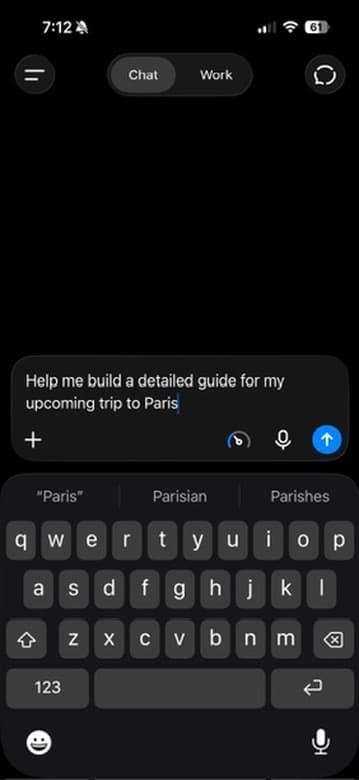
- Find the message box near the bottom of the screen.
- Tap the + or paperclip button next to that box.
- Choose Add photos & files.
- Take a photo, choose a photo you already have, or attach a file such as a PDF.
- Type what you want. Then tap the arrow to send.
The exact words on that menu can change. You are looking for the choice that adds a photo or a file. On an iPhone, if you see a + button, you can press and hold it. That can show your recent photos. The app may ask permission to see your photos the first time.
The button next to the message box
Take a clear photo
ChatGPT reads the picture you send. A clear photo is easier to read than a blurry one.
- Lay the page flat.
- Use bright, even light. Watch for glare from a lamp or a window.
- Hold the phone still.
- Get the whole page in the frame, with the words large enough to read.
- Photograph one page at a time.
- Turn the photo so the words are right-side up.
A screenshot of a text, an email, or a settings screen works the same way. Attach the picture, then say what you want.
On a computer
You can do this in a web browser. You do not need to install an app on the computer.
- Open your browser and go to chatgpt.com.
- Sign in.
- Click the + or paperclip button next to the message box.
- Choose Add photos & files.
- Or drag a picture or a PDF onto the message box. You can also paste a picture you copied.
- Type what you want. Then click the arrow, or press Return.
What you are looking for on a computer
chatgpt.com
ChatGPT
Ask anything
What to type after you upload
Attach the photo or file first. Then send a clear request in the same message. Ordinary English is enough.
These three are useful starting points. Copy one, send it, and stay in the same chat if you want a follow-up.
Use this for a letter, a bill, a notice, or a screenshot. Attach the file first.
Explain this in plain English, then tell me the one next step.
Use this when you want questions for a person at the company, a plan, or a doctor’s office.
Turn this letter into a list of questions I should ask.
Use this for a recipe card or other handwriting. Then compare it with the original.
Read this handwritten recipe card and type it out neatly.
The first reply is a starting point. If a sentence is unclear, or a number looks off, say so. Two useful follow-ups are “What should I double-check?” and “Mark any word you are not sure about.”
An example
Here is one way a conversation can go. The notice in this example is made up. The name, policy number, and date of birth are already covered. Your own reply will not match this word for word.
You
I covered my name, policy number, and date of birth. Explain this in plain English, then tell me the one next step.
ChatGPT
This notice says your home insurance payment will change on January 1. The page lists a new amount of $146 a month. It also says the deductible stays at $1,000. I can misread a number from a photo. The one next step is to check $146, January 1, and $1,000 against the original page. If they match and you want to know why it changed, call the phone number printed on the notice.
You
Turn this into a list of questions I should ask.
ChatGPT
1. Why did the monthly amount change? 2. Did my coverage change, or only the price? 3. Is $1,000 still the deductible for every type of claim? 4. What date does the new amount start? 5. What should I do if I want to compare this with another plan?
Use the reply to understand the page and to prepare questions. Check the original before you pay, cancel, or call. ChatGPT should not choose an insurance plan, a doctor, or a legal step for you.
What ChatGPT reads well, and what it can get wrong
It usually does well with clear print, a readable screenshot, and a PDF whose words you can select and copy.
These are harder:
- a blurry photo, a dark photo, or a page with glare
- messy handwriting, faint pencil, or a crowded recipe card
- a page that is sideways or upside down
- very small type
- a long file with many pages sent all at once
A scanned document needs an extra check. If the PDF is only a picture of the page, and you cannot select the words, ChatGPT may not read those words from the file. On a personal account, including the free version, it pulls out text it can copy. It does not reliably see pictures that are inside the PDF.
When the words are only in the picture, take a clear photo of one page and upload that photo instead.
Numbers are where mistakes show up most. ChatGPT can misread a digit, a date, or a dollar amount and still sound sure. Always check amounts, dates, and phone numbers against the original.
Handwriting can work when the writing is neat and the photo is clear. Ask it to type what it can read, and to mark any word it is unsure about. Then compare that typed copy with the card.
Common mistakes
- Sending the photo while your name, account number, or Medicare number is still showing. Cover those first.
- Asking “What do I owe?” or “What should I decide?” Ask “What should I double-check?” or “What questions should I ask?”
- Uploading 20 pages at once. Start with the page that confuses you. You can add another page in the same chat.
- Trusting a misread number. If a figure matters, look back at the paper before you act.
Is it safe to upload documents to ChatGPT?
It can be a useful way to understand a page. It is still worth being careful about what is in the picture.
Cover personal details first. Leave out passwords, Social Security numbers, bank and credit card numbers, and security codes. A file you upload can remain saved after you delete the chat, until you delete that saved copy too.
For a medical letter, a lab result, a bill, or a legal paper, use ChatGPT to explain the words and to list questions. Do not use a photo of an X-ray or a scan to decide on care. Check the original, and ask a doctor, the plan, or another qualified person before you decide.
ChatGPT can be wrong, incomplete, or out of date. A calm answer is not the same thing as a checked fact.
Common questions
Can ChatGPT read a photo of a letter?
Yes, when the photo is clear and the print is large enough to read. It looks at the picture and tries to read the words. It can still miss a line or misread a number. Check anything important against the paper.
Can ChatGPT read handwriting?
Sometimes. Neat handwriting on a clear photo often works. Messy writing, faint pencil, and blurry photos are harder, and ChatGPT can guess a word wrong. Ask it to mark anything it is unsure about, then compare that with the original.
Is uploading free, and how many files can I add?
Photos and common files, including PDFs, work on the free version. OpenAI’s current help page says a free account can upload 3 files a day. A paid plan can allow more. If you see a message that you have reached the upload limit, wait and try again later. OpenAI may also lower the limit when the service is busy.
Can ChatGPT read a PDF out loud to me?
It can speak its explanation. It does not turn the original file into a perfect audiobook.
On an Android phone, look under the reply, or open the three-dot menu on that reply. OpenAI’s help page says the choices can include Read aloud. The exact list can change.
On an iPhone, an Android phone, or a computer, you can also use the voice control next to the message box and ask ChatGPT to explain the page out loud. The free version includes some voice use, and the limits can change. The spoken reply also appears as text. If a number, date, or name matters, check it against the original.
Can ChatGPT see my screen?
Not on its own. It sees the photo, screenshot, or file you attach. On the iPhone and Android apps, some paid plans can share the phone screen during a voice conversation. You have to start that yourself, and it is not available in every voice mode. For a letter or a bill, a photo is the simple way, and you can cover private details first.
What to try next
You now have a simple way to show ChatGPT a page: cover the private lines, add a clear photo or a file, ask for a plain-English explanation, and check the important details yourself.
For a broader start, return to the complete beginner’s guide to ChatGPT. If you want the iPhone setup from the beginning, use the iPhone guide.
If you are new to ChatGPT, I made a free beginner guide with 10 useful things you can try today, including exact messages you can copy. It is free and comes by email.
Related guides
How to Use ChatGPT: A Beginner’s Guide for Adults 55+
Learn how to open ChatGPT, send your first message, try five useful everyday tasks, and use it more safely. Written for beginners.
How to Use ChatGPT on an iPhone: A Simple Step-by-Step Guide
Install the official ChatGPT app on an iPhone, send your first message, ask a follow-up, and try one useful task. Written for beginners.
What Not to Share With ChatGPT: A Simple Privacy Guide for Beginners
The personal details you should never type into ChatGPT, how to get help with a letter or bill safely, and the simple privacy settings worth knowing.